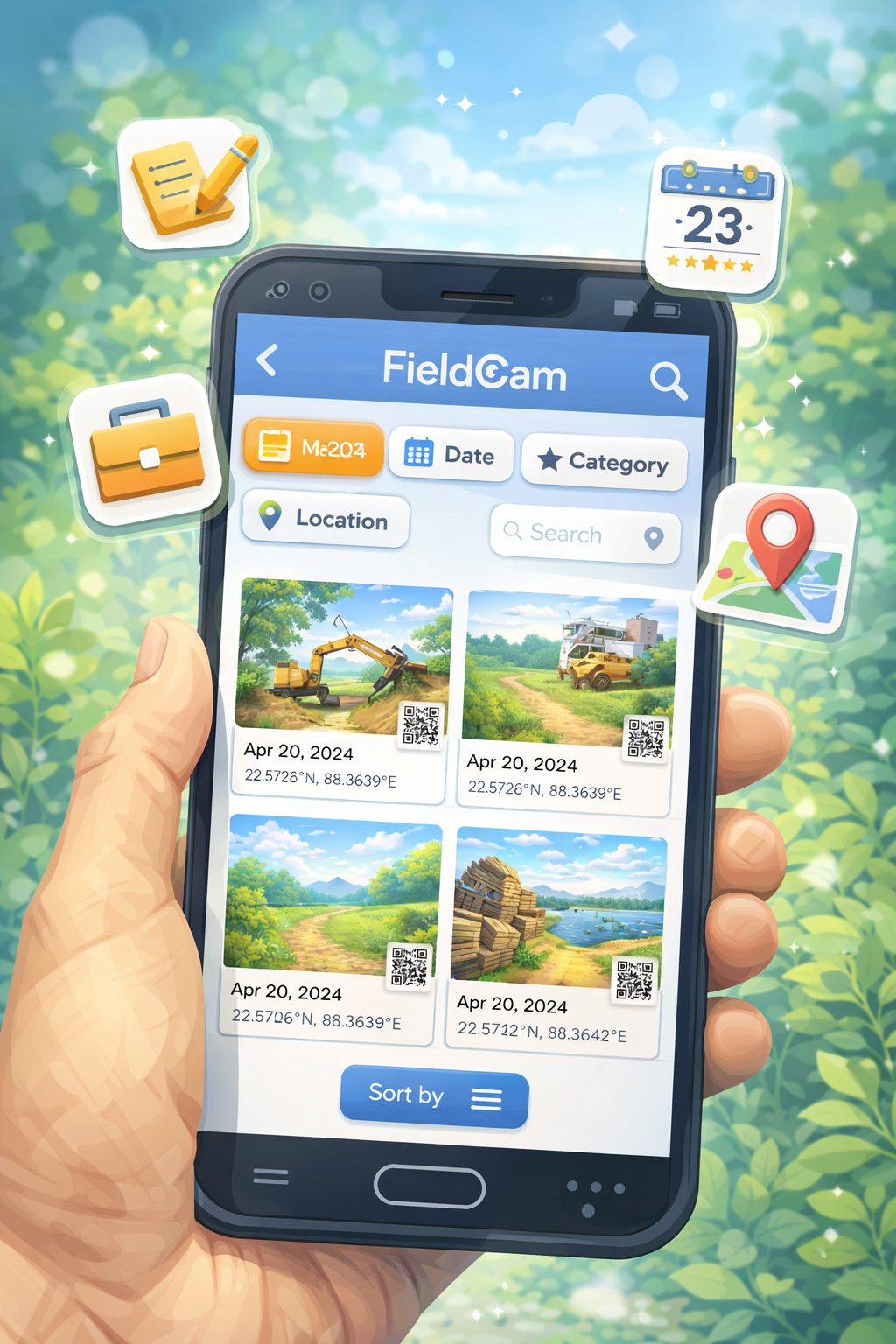
Trusted field evidence capture

Capture proof-ready photos and videos with FieldCam

FieldCam adds reliable timestamp, GPS location, address, and workflow metadata to each capture. Teams can sync securely to Google Drive, FTP, and email workflows.
10+Evidence fields
3Sync channels
100%Mobile-first UI
No login required to view this website.
FieldCam app preview
Public homepage for OAuth review
Transparent data-use and permissions
Visible privacy policy link
WHAT FIELDCAM DOES

Built for simple and trusted field reporting

Capture on site

Take photo or video with camera controls designed for field users.

Add proof metadata

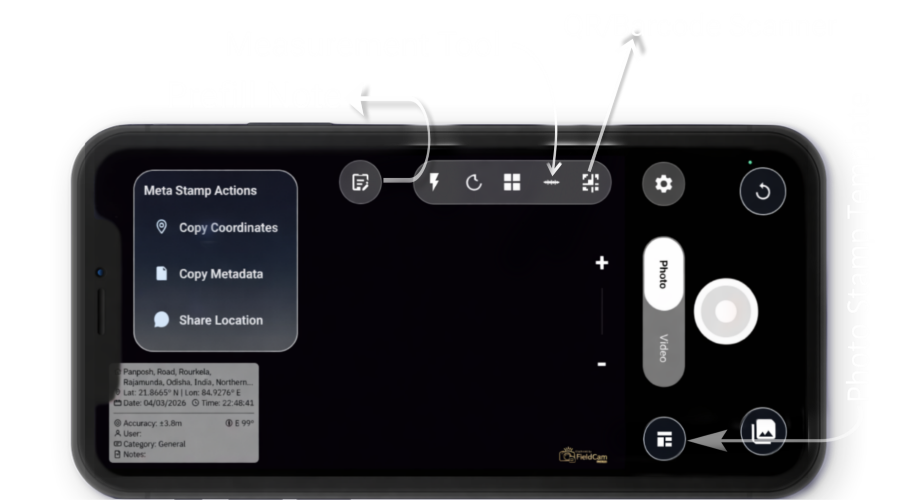
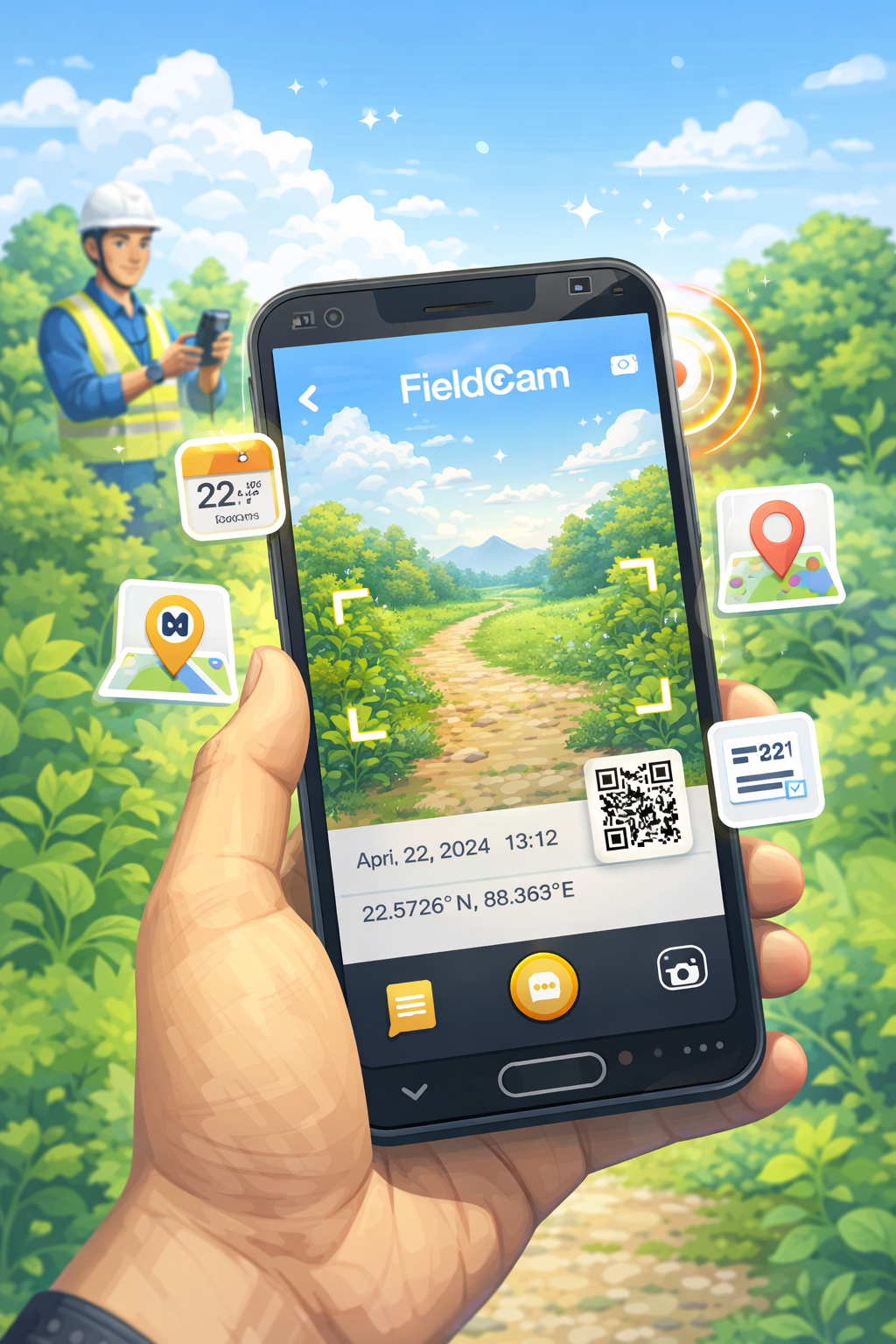
Automatically stamp date, time, GPS, address, user, notes, and category.

Share and sync

Sync captures to Google Drive or FTP with category-based controls.
FEATURES BY CATEGORY

Everything your team needs, explained clearly

Capture and Camera

  • Photo and video capture with quick controls
  • Grid, flash, timer, zoom, and focus tools
  • Permission-aware "Tap to fix" guidance

Stamp and Metadata

  • Multiple stamp templates including Smart Field Pro
  • Metadata lines: date/time, GPS, address, notes, category, user
  • Custom watermark modes and QR metadata options

Verification and Security

  • Trusted time and policy-aware validation checks
  • Professional mode controls for strict workflows
  • Evidence-focused output for audit-ready use cases

Sync and Backup

  • Google Drive sync with account selection
  • FTP/FTPS sync options with category controls
  • Auto and periodic sync modes with logs

Map and Measurement

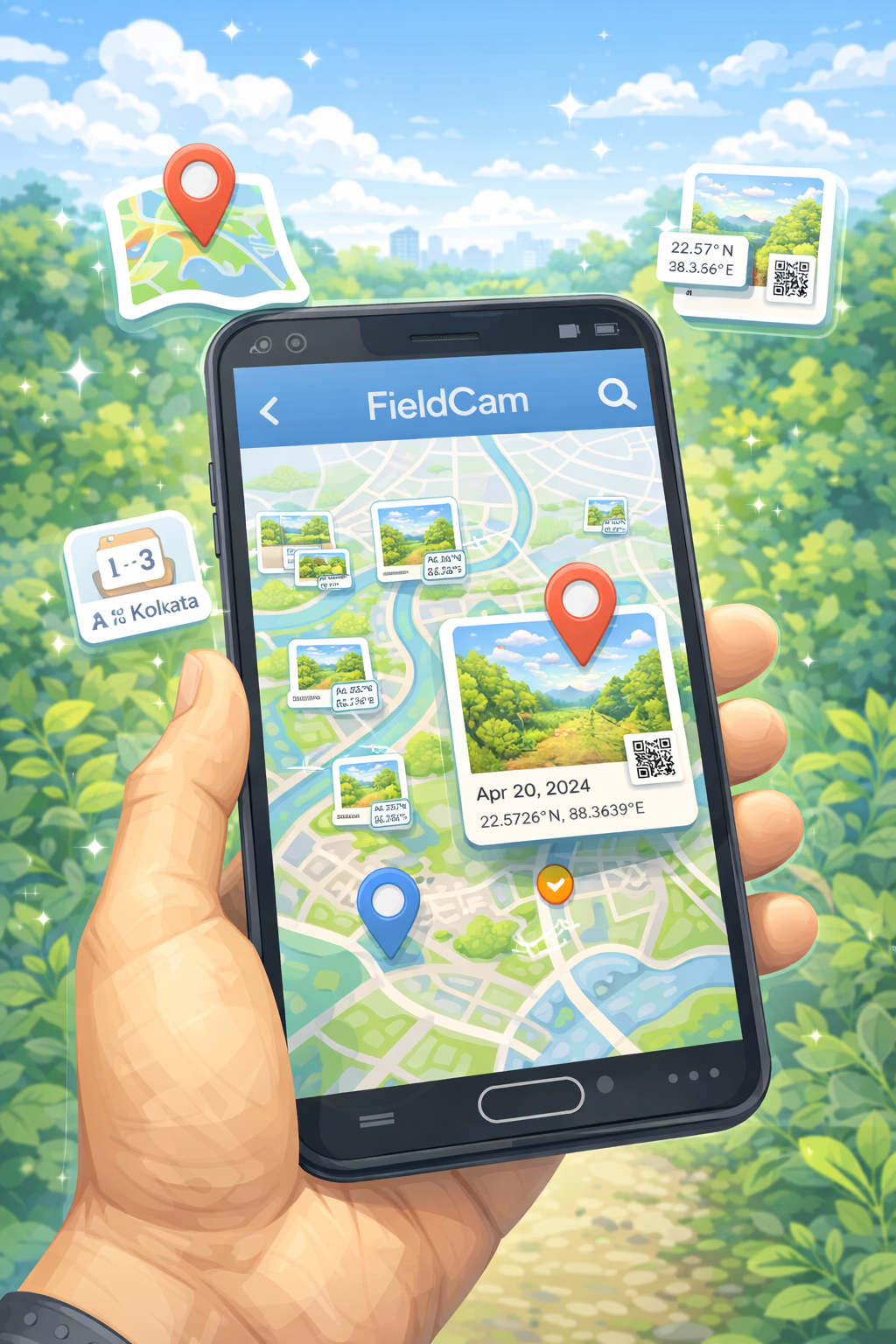
  • Photo map views and location-based browsing
  • On-screen guidance for measurement workflows
  • Useful for survey and site-inspection scenarios

Personalization and Premium

  • Template manager, category manager, and export settings
  • Premium unlock options with clear feature gates
  • Reward-ad unlock for selected non-premium flows
STEP-BY-STEP TUTORIALS

Category-based guide for first-time users

  1. Open FieldCam and allow Camera, Location, and Audio when prompted.
  2. If "Tap to fix" appears, tap it and grant missing permissions.
  3. Confirm preview is visible and permission warning is cleared.
  1. Go to Settings and open Stamp Template Manager.
  2. Select a template (Smart Field Pro recommended for default workflow).
  3. Adjust metadata fields, text style, and watermark mode as needed.
  1. Open Settings and go to Sync Settings.
  2. Choose Google Drive or FTP and configure account/credentials.
  3. Select categories and sync mode, then run a test sync.
  1. Open Gallery and select required photo/video files.
  2. Choose export format (PDF, CSV, ZIP, etc. as available).
  3. Share via your workflow or verify cloud sync completion.
Tutorial screenshot placeholder 1

Add screenshot: Template manager screen
Tutorial screenshot placeholder 2

Add screenshot: Sync settings screen

Tutorial screenshot placeholder 3

Add screenshot: Gallery export screen

YOUTUBE EXPLAINER

Feature-wise video tutorials

Use each card to link a YouTube video that explains one feature category.

Capture Basics

How to start photo/video capture and fix permission issues.

Stamp Templates

How Smart templates work and how to configure metadata visibility.

Google Drive Sync

How to connect Google account and verify upload process.

FTP Sync

How to configure server, credentials, and category-based FTP sync.

GOOGLE OAUTH AND DATA USE

Transparent permission and user-data explanation

Permission / Data Why FieldCam requests it User control
Camera Capture photo and video evidence. Can be denied or changed in Android app settings.
Location Attach GPS coordinates and address metadata. Can be granted only while using the app.
Microphone Audio track for videos. Can be disabled by denying microphone permission.
Storage / Photos and Videos Read and manage captured media for export and sync. Can be adjusted in system permission screen.
Google OAuth (Drive sync) Upload user-selected FieldCam media to user Google Drive. User can disconnect account and revoke access in Google account settings.

Google OAuth quick reference

  • FieldCam uses Google sign-in only to enable Drive sync.
  • Drive access is used for FieldCam media backup/sync workflows.
  • This homepage and the privacy policy are publicly visible without login.
  • Privacy policy: https://fieldcam.in/privacy.html
COMMUNITY AND SUPPORT

Official social and forum links

CONTACT

Need help with setup or verification?

Support: [email protected]

Privacy Policy: https://fieldcam.in/privacy.html

This page is public and accessible without login.